
Import a Claim
A Claim export lands in Autocount as a general journal, through Import G/L Journal Entry: its line items post as debits to their accounts, balanced by credit to the claimant’s account. An Explicit claim with one tax rate has one credit row; one with several rates has one credit row per rate, each naming that rate’s code and carrying its gross and tax.
Export the Claim from Krani
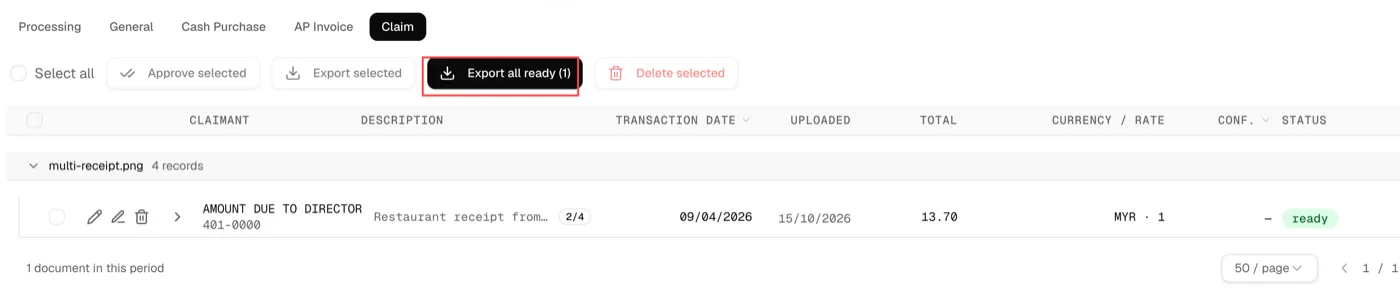
Section titled “Export the Claim from Krani”On the Documents page, open the Claim tab and choose Export all
ready. Krani downloads one .xlsx.
Open Import G/L Journal Entry
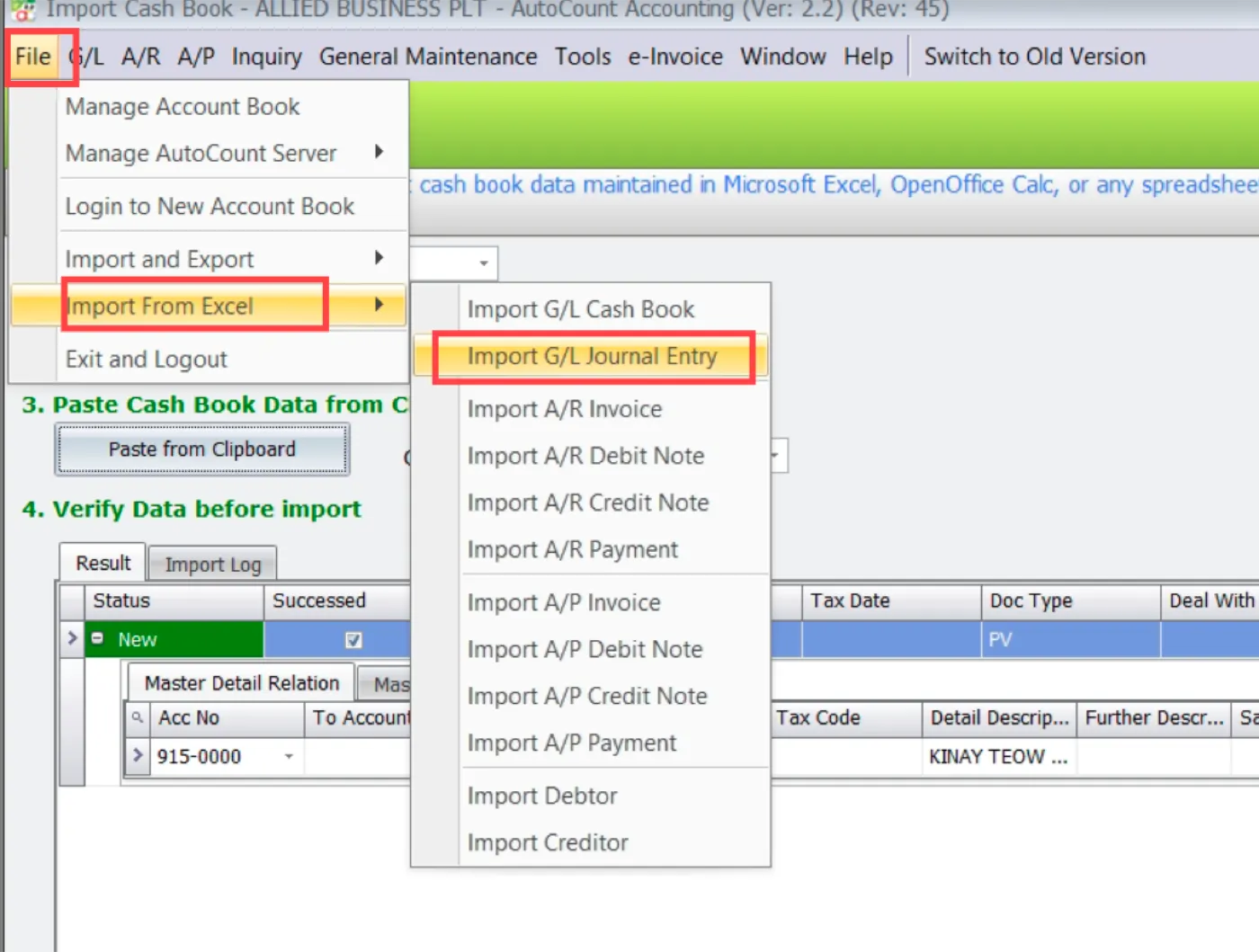
Section titled “Open Import G/L Journal Entry”In Autocount, open File → Import and Export → Import From Excel → Import G/L Journal Entry.
Copy the sheet
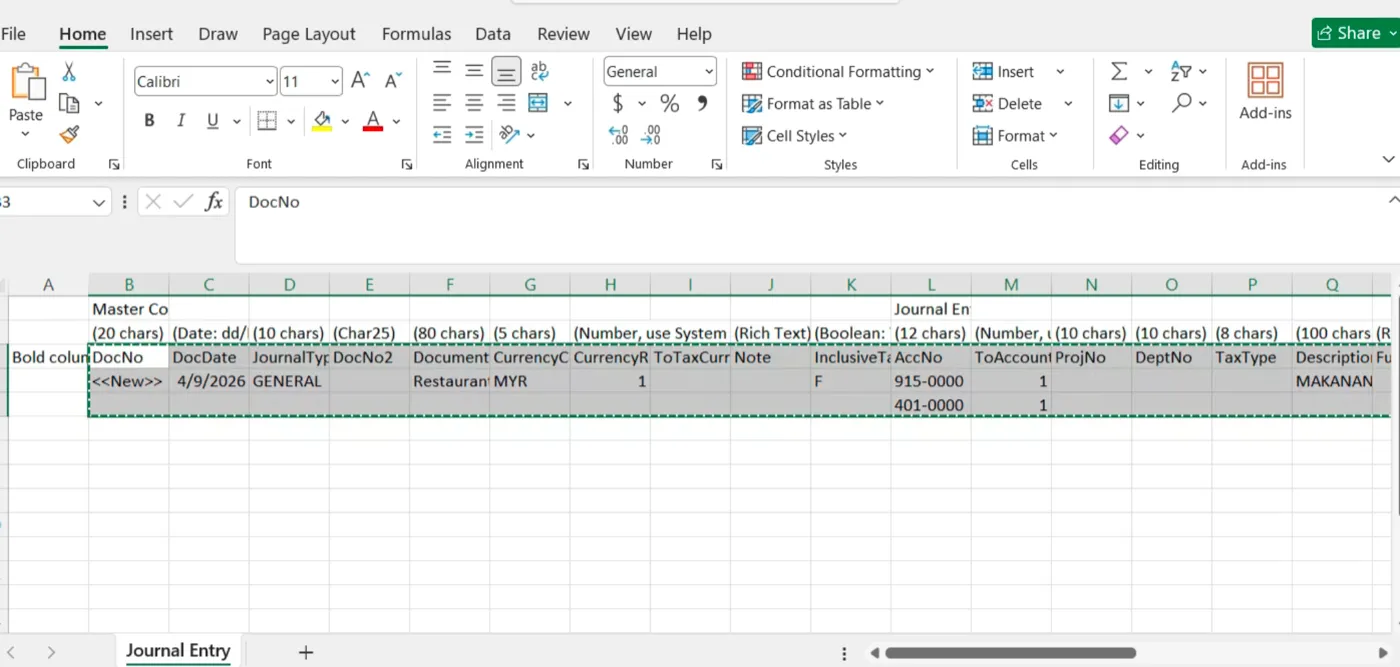
Section titled “Copy the sheet”Open the .xlsx Krani downloaded, select the header row and the document rows
beneath it, and copy the selection (Ctrl+C). Don’t select the whole sheet —
only the header row and the data belong on the clipboard.
Paste and import
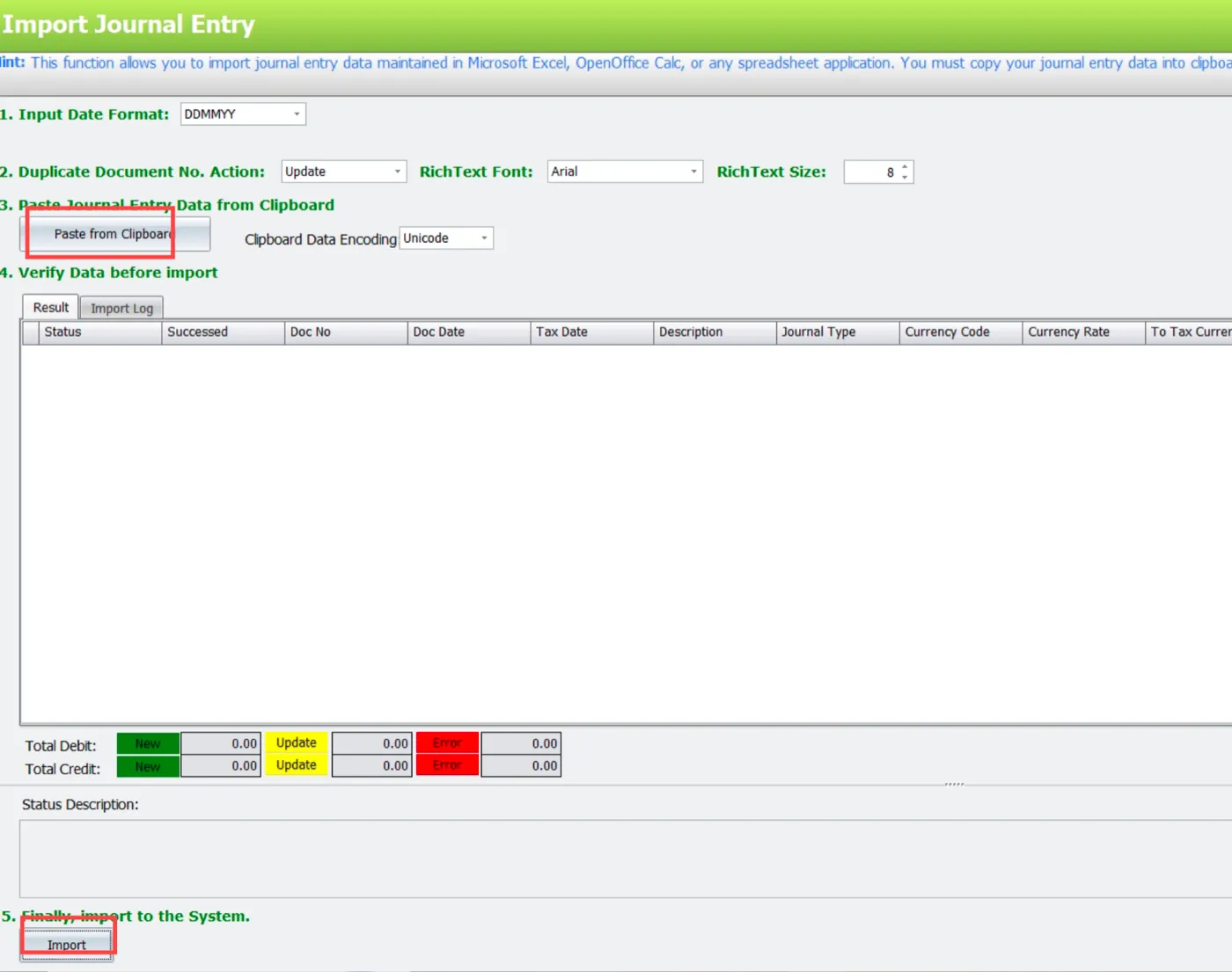
Section titled “Paste and import”In the Import Journal Entry window:
- Set Input Date Format so it reads the file’s dates. The date column is
day-first (
4/9/2026), so choose DDMMYY — if your spreadsheet shows it month-first, choose MMDDYY instead. - Leave Duplicate Document No. Action at Update.
- Choose Paste from Clipboard.
- Check the preview — Total Debit and Total Credit should match each other and the claims you exported, and anything under Error needs fixing first.
- Choose Import.
The journal posts with type GENERAL. A multi-line claim imports as one journal
— the debit legs and the balancing credit share a single document number, which
is on the first row only. An Explicit claim’s tax columns carry the tax amount,
so an edited tax item posts as that figure. The claim’s own Document No fills the journal’s
Doc No 2 column, so the posted journal can be traced back to the claim. The
column holds 25 characters: a longer number is trimmed to fit, and Krani records
the trim in the client’s activity log rather than failing the export.