
Import a Cash Purchase
A Cash Purchase export lands in Autocount as a Payment Voucher — money the firm paid out — through Import G/L Cash Book. It is never a Receipt Voucher, which would post the opposite direction.
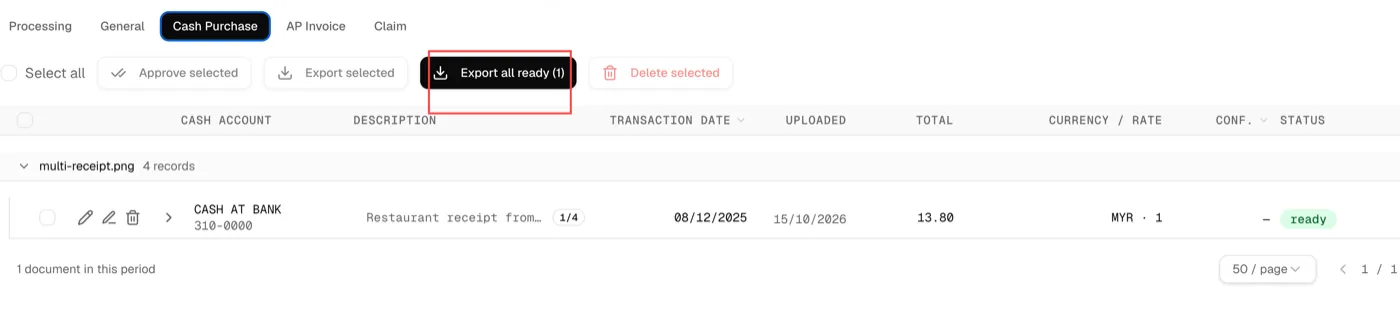
Export the Cash Purchase from Krani
Section titled “Export the Cash Purchase from Krani”On the Documents page, open the Cash Purchase tab and choose Export
all ready. Krani downloads one .xlsx.
Open Import G/L Cash Book
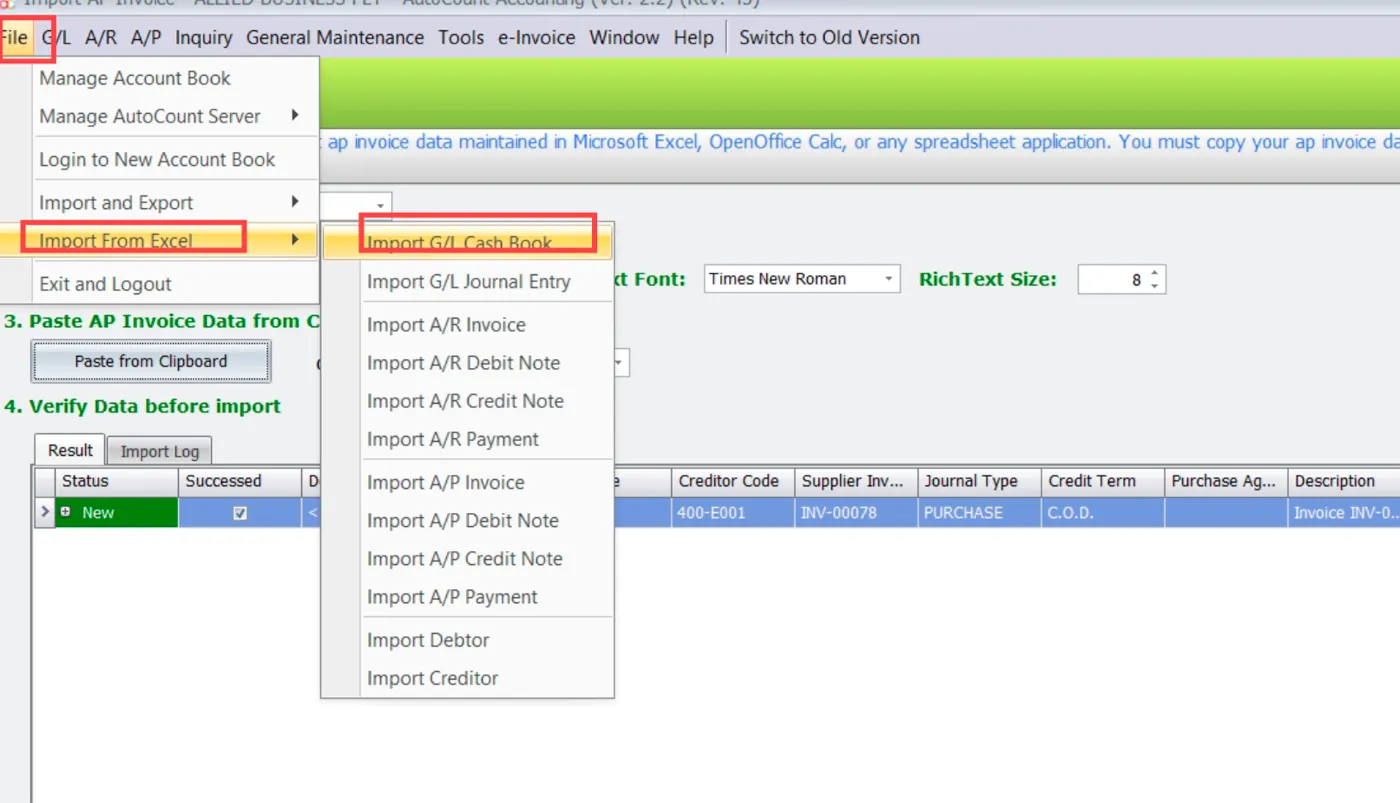
Section titled “Open Import G/L Cash Book”In Autocount, open File → Import and Export → Import From Excel → Import G/L Cash Book.
Copy the sheet
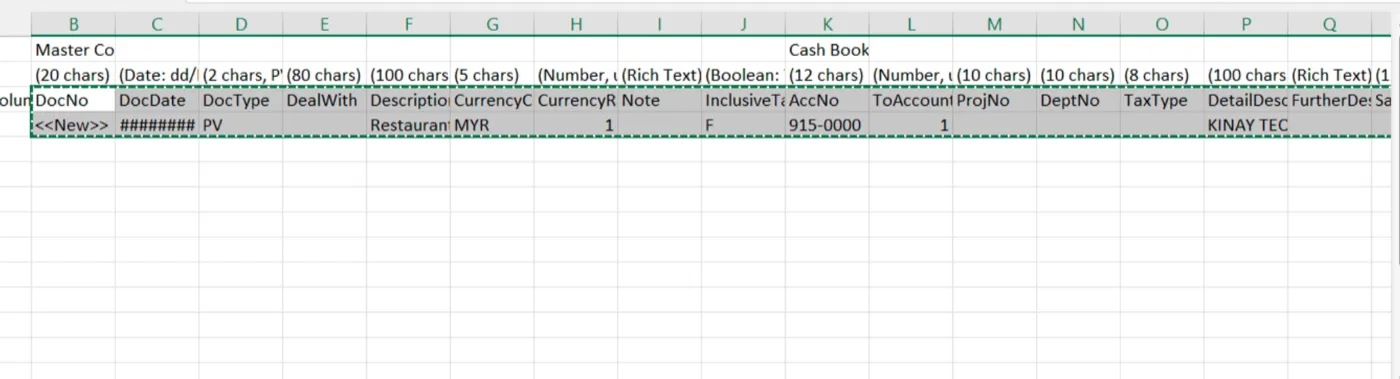
Section titled “Copy the sheet”Open the .xlsx Krani downloaded, select the header row and the document rows
beneath it, and copy the selection (Ctrl+C). Don’t select the whole sheet —
only the header row and the data belong on the clipboard.
Paste and import
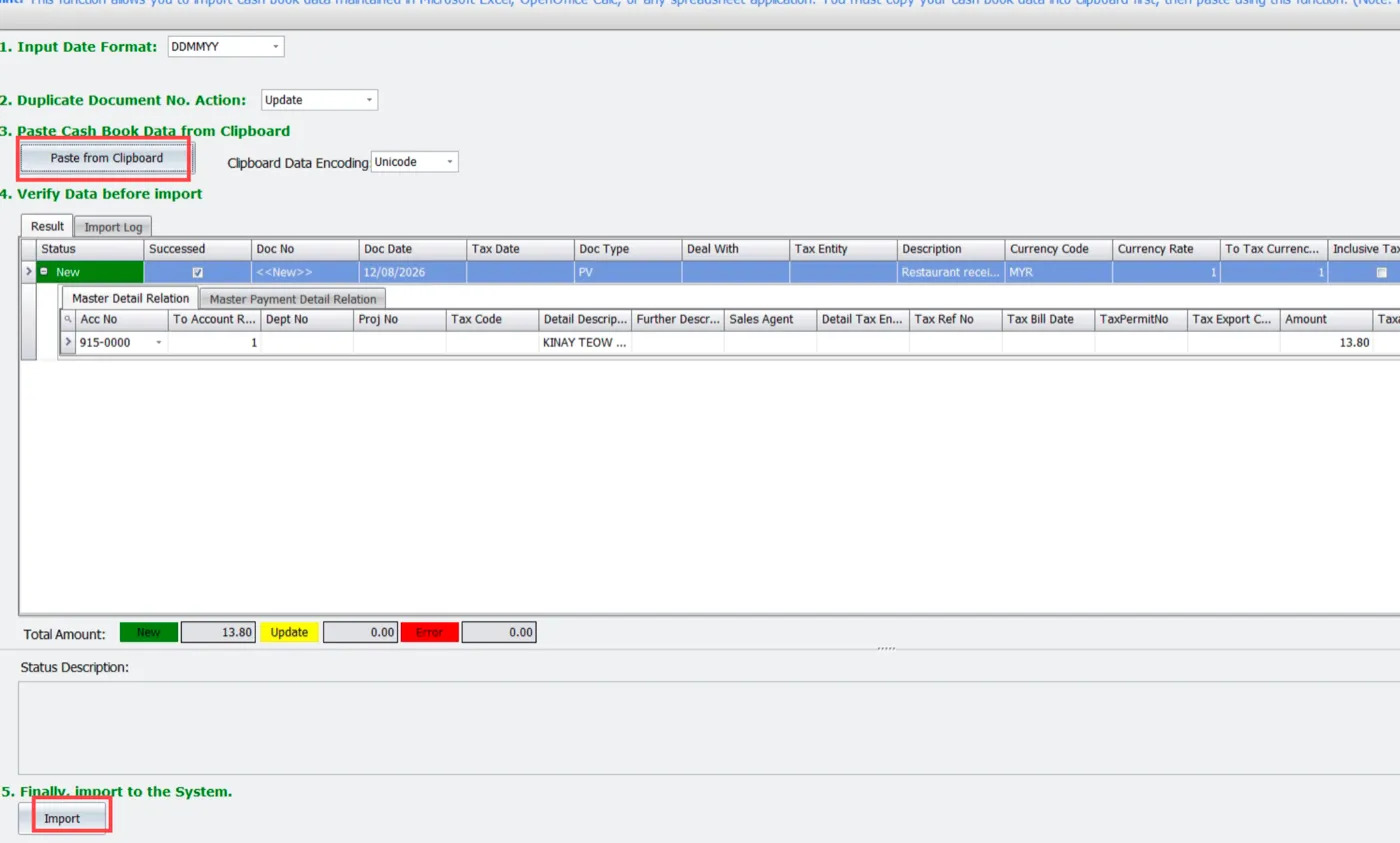
Section titled “Paste and import”In the Import Cash Book window:
- Set Input Date Format so it reads the file’s dates. The date column is
day-first (
12/08/2026), so choose DDMMYY — if your spreadsheet shows it month-first (08/12/2026), choose MMDDYY instead. - Leave Duplicate Document No. Action at Update.
- Choose Paste from Clipboard.
- Check the preview — the New total should match the purchases you exported, and anything under Error needs fixing first.
- Choose Import.
The voucher posts with type PV, and the client’s default payment method
carries onto its payment detail. A multi-line purchase imports as one voucher —
the new-document marker is on the first row only.
Autocount’s cash book has no column for the receipt’s own number, so a Cash Purchase export does not carry it: Autocount numbers the voucher itself. The number stays on Krani’s record and on the source file.